Tag: chatgpt

  • How I Built a PDF-to-Excel App with FastAPI and Gemini

    How I Built a PDF-to-Excel App with FastAPI and Gemini

    A deep dive into AI-powered document processing

    The origin story

    ZapDoc is an AI-powered document processing platform that extracts structured data from PDF documents and delivers results in Excel format via email.

    I didn’t start out wanting to build a document automation platform.

    What I wanted was leverage. I’d seen firsthand how time-consuming and painful it was to pull structured data out of messy PDFs: invoices, CVs, contracts, proposals… all needing to be manually parsed, copy-pasted, or hand-entered into Excel.

    So I asked myself: Could I build something that turns these documents into clean, structured spreadsheets, with zero effort from the user?

    After a few weekends and sleepless nights, the answer became ZapDoc, a web tool that:

    • Takes multiple PDFs or a .zip archive,
    • Lets you define which fields you want to extract (e.g. “name”, “email”, “amount”, “date”),
    • And returns a clean Excel file by email.

    It sounds simple, but the devil is in the details.

    From MVP to modular system

    I built the first prototype over a weekend: FastAPI for the backend, hosted on Railway; a minimal React frontend on Vercel; and OpenAI for field extraction.

    v0: prove it works

    The early version was rough, but functional.

    The idea was to make it free, so people would actually use it and I’d get some feedback. It had to be friction-free.

    I tested it with real CVs and invoices. I posted in indie Discords to get feedback, asking people what they’d actually use it for.

    One thing became clear: I didn’t need to support every document type. I needed to be amazing at just a few — like resumes, invoices, and RFPs.

    Iterating

    v1:

    • .zip upload support
    • Field templates (e.g., pre-fill “name” and “email” for resumes)
    • Date formatting, better validation

    v2:

    • Usage analytics (without storing docs)
    • Email capture → no sign up yet, but I you’d still need to give your e-mail address
    • Templates for RFPs and proposals

    v3:

    • Auth system + Supabase-backed user DB
    • Credit management service
    • Payment flow & webhook integration
    • A cleaner, more secure pipeline

    Every iteration made it more robust, less hacky, and closer to a real SaaS.

    System Architecture (v3 overview)

    ZapDoc consists of a Vercel-hosted frontend and a Railway-hosted FastAPI backend.

    The core value proposition is simple: upload PDF documents, specify which fields you want to extract, and receive structured data in Excel format via email.
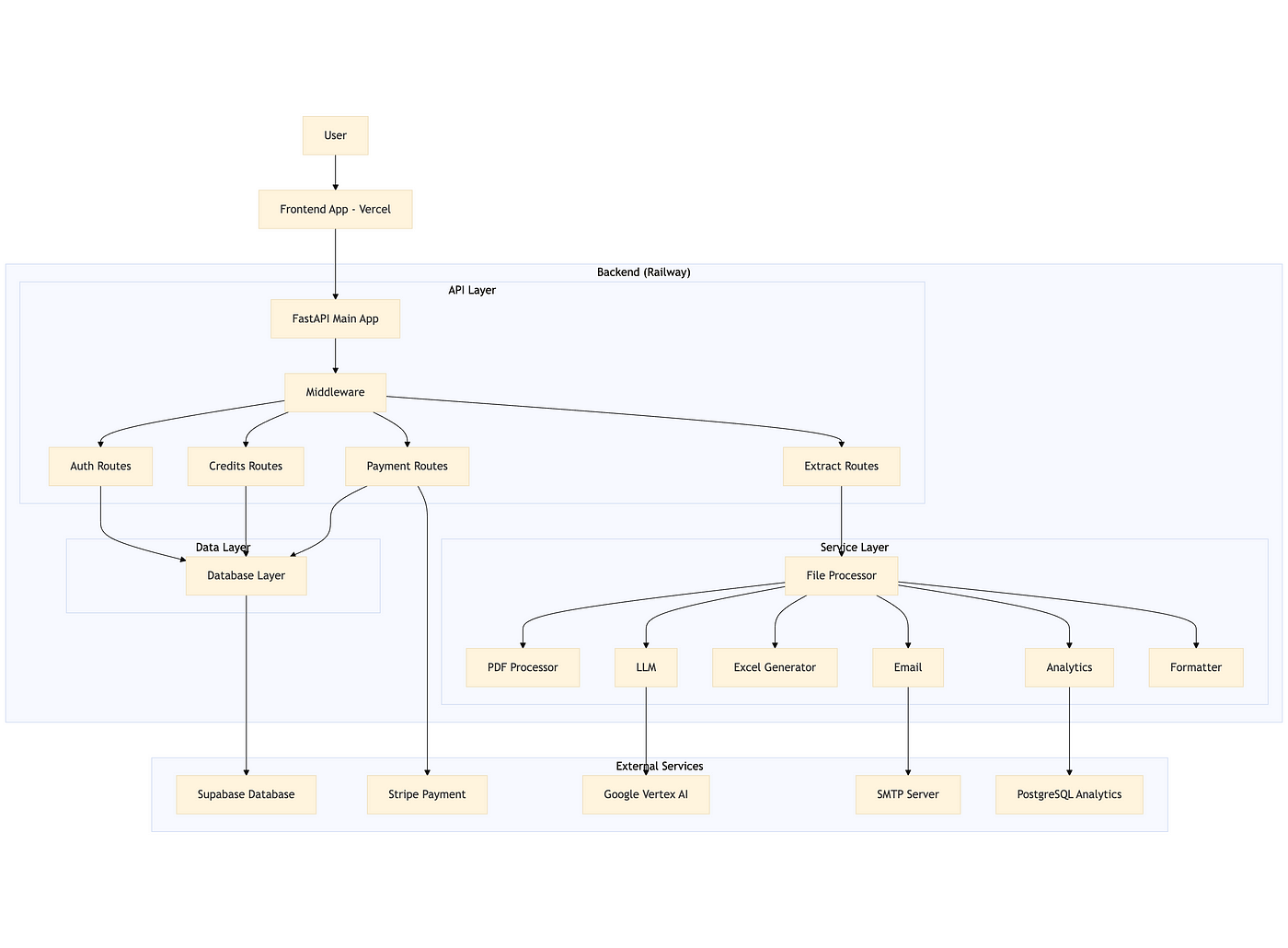
    Overview of the system design

    Technical Stack

    • Backend: FastAPI (Python) running on Railway
    • AI: Google Vertex AI (Gemini)
    • Database: Supabase (PostgreSQL)
    • Payments: Stripe
    • Frontend: React (Vercel)
    • Analytics: PostgreSQL

    Core Implementation

    1. FastAPI app

    The backend is modular, with clear separation between API routes, services, and data models.

    Middleware enforces CORS and HTTPS, and all routes are grouped by function (auth, extract, credits, payment).

    2. Authentication & authorization

    Authentication is handled via Supabase JWT tokens. The backend validates tokens on every request using a dependency-injected function, ensuring only authenticated users can access protected endpoints.

    3. Document processing pipeline

    Credit validation

    Before processing, the system checks if the user has enough credits (1 credit per page). This is done atomically to prevent race conditions, using asyncio locks and optimistic locking at the database level.

    Page counting

    The backend counts the total number of pages across all uploaded PDFs and ZIPs (containing PDFs) using PyPDF.

    PDF text extraction

    Text is extracted from each PDF using PyPDF, with robust error handling for malformed or encrypted files.

    AI-powered field extraction

    The extracted text is sent to Google Vertex AI (or OpenAI as fallback) with a prompt to extract only the requested fields. The response is parsed and validated, using the json_repair library to handle malformed JSON.

    Document classification

    For analytics, the document is also classified (invoice, receipt, contract, etc.) using the same LLM service.

    Excel generation

    Extracted data is written to an Excel file using OpenPyXL, with the first row as headers and subsequent rows as data.

    A header column is included, with the file names.

    Email delivery

    The resulting Excel file is sent to the user via SMTP, using a styled HTML template and proper attachment handling.

    4. Atomic credit operations

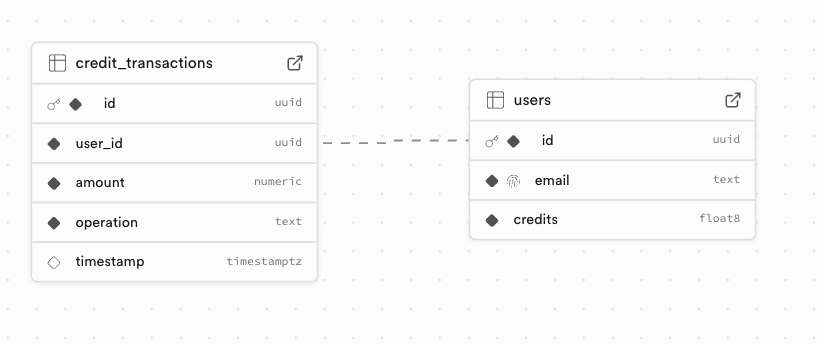
    All credit operations (add/spend) are atomic. The backend uses asyncio locks and checks the current credit balance before updating, retrying if a concurrent modification is detected.

    5. Payment integration

    Stripe is used for purchasing credits. The backend creates a checkout session and listens for webhook events to credit the user’s account after successful payment.

    6. Analytics

    The processed documents themselves are not stored, but the type (resume, etc.) and status (error / success) is logged to a PostgreSQL analytics database for monitoring and future insights.

    Key technical challenges & solutions

    By far, the most challenging part for me was setting up the whole thing in a way that it wouldn’t have major security flaws.

    In short, when I set the credit/payment part, I wanted to make sure that users couldn’t bypass the payment system somehow, nor get other users’ email addresses.

    Since this is the part I’m the least comfortable with, I had a lot of help from ChatGPT.

    Things like path traversal protection, user isolation, CORS, middleware, etc. are still not 100% clear to me, but this project helped me get a better understanding of them.

    Some other stuff to keep in mind

    • Race conditions: Solved with asyncio locks and optimistic DB updates.
    • LLM response robustness: Used json_repair and strict field validation.
    • PDF extraction reliability: PyPDF with error handling and support for ZIPs.
    • Performance: Async I/O, efficient batch processing, and proper resource cleanup.

    Database Schema (Supabase)
    Branding, naming & launch

    I wanted something simple, memorable, and descriptive.

    After a few brainstorms, I landed on ZapDoc, because it zaps your documents into structured data.

    The name stuck.

    I described the project to ChatGPT and asked it to draw a logo.

    Its first suggestion wasn’t amazing, but it was good enough, so I kept it:

    Then came the social and launch planning: Medium, LinkedIn, X, Bluesky, Discord, Uneed, Product Hunt… I’m still rolling that out now.

    To get some validation for the product, I launched this free version and even ran some Google Ads campaigns for it (~200 euros over 3 weeks)
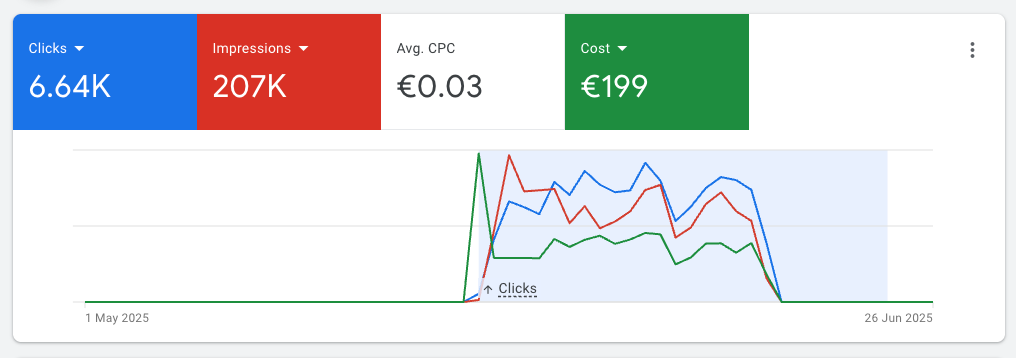
    That brought a lot of people to the tool, but not many users:

    Plus, I saw that once the ads stopped, traffic was basically over.

    This indicates that people who tried it before didn’t really stick to it.

    Either the tool is not useful, or I’m not reaching the right people.

    What I learned (so far)

    • Start with a niche: you can’t beat GPT-4 at “generic doc parsing”, but you can win at “extract line items from French invoices”.
    • Atomicity matters: especially when money is involved.
    • AI output isn’t perfect: you need robust validation & formatting layers.
    • Building is much easier than selling: it became much easier to build powerfull tools with the help of AI. Making people pay for them is much harder than I expected.

    To be honest, I’m still struggling with the niche part: from the usage stats, it seems that most people use it to parse CVs (I thought it would be contracts). But that’s still too generic, so I’ll try to narrow it down once I get more usage data.

    What’s next

    For v4 and beyond, I’ll try to run ads again (but put less money this time), to see if now people are willing to actually sign up and pay.

    If that happens, then I’ll work on some more technical improvements. Some ideas I have in mind for this:

    • Move logs from Railway to Supabase for better observability
    • Expose an API, so people can integrate it into their own tools
    • Add more document types (contracts, tenders)
    • Allow users to store custom lists of fields

    Final thoughts

    ZapDoc is still small.

    But it works, and it helped me learn a lot of useful stuff.

    Now, I want to crack the sales part, so I can help real users automate real work.

    If you’re building with LLMs, don’t chase the hype. Solve a boring problem really well.

    Make it work, then make it pretty.

    That’s what I’m trying to do.

    You can test it here: https://zap-doc.vercel.app/

    Let me know what you think. Always happy to chat.

    Feel free to reach out to me if you would like to discuss further, it would be a pleasure (honestly):

  • Query2doc: Improve your RAG by expanding Queries

    Query2doc: Improve your RAG by expanding Queries

    Most query expansion methods either dig through feedback from initial search results or rely on pre-defined thesauruses. Query2doc skips both.

    Instead, it uses LLMs to generate short, relevant pseudo-documents and appends them to your query — no retraining, no architecture changes.

    How It Works

    1. Use few-shot prompting (4 examples) to generate a passage based on a query.
    2. Combine the original query and the LLM-generated text:
    • For BM25: repeat the query 5 times, then add the pseudo-doc.
    • For dense retrievers: simple [query] [SEP] [pseudo-doc].

    Why It Matters

    • +15% nDCG@10 boost for BM25 on TREC DL.
    • Also improves dense models like DPR, SimLM, and E5 — even without fine-tuning.
    • Works best with bigger models — GPT-4 outperforms smaller ones.
    • Crucially, the combo of original query + pseudo-doc works better than either alone.

    Limitations

    • Latency: >2 seconds per query — too slow for real-time.
    • Cost: ~550k LLM calls = ~$5K.
    • LLMs can hallucinate. Still need validation layers for production.

    Takeaway

    Query2doc is dead simple but surprisingly effective. It’s a plug-and-play upgrade for search systems — ideal for boosting retrieval quality when training data is scarce.

    Just don’t expect real-time speed or perfect factual accuracy.

    Example

    import chromadb
    import openai
    import os
    
    # Set your OpenAI API key
    openai.api_key = os.getenv("OPENAI_API_KEY")
    
    # Step 1: Few-shot prompt template
    def generate_pseudo_document(query):
        prompt = f"""
          Write a passage that answers the given query.
          
          Query: what state is zip code 85282
          Passage: 85282 is a ZIP code located in Tempe, Arizona. It covers parts of the Phoenix metro area and is known for being home to Arizona State University.
          
          Query: when was pokemon green released
          Passage: Pokémon Green was released in Japan on February 27, 1996, alongside Pokémon Red. These games were the first in the Pokémon series.
          
          Query: {query}
          Passage:"""
    
        response = openai.ChatCompletion.create(
            model="gpt-3.5-turbo",
            messages=[{"role": "user", "content": prompt}],
            max_tokens=150,
            temperature=0.7,
        )
    
        return response.choices[0].message["content"].strip()
    
    # Step 2: Initialize Chroma and add documents
    client = chromadb.Client()
    collection = client.create_collection("my_docs")
    
    docs = [
        "Pokémon Green was released in Japan in 1996.",
        "Tempe, Arizona has ZIP code 85282.",
        "Randy Newman sings the Monk theme song.",
        "HRA is employer-funded; HSA is individually owned and tax-free."
    ]
    
    collection.add(
        documents=docs,
        ids=[f"doc_{i}" for i in range(len(docs))]
    )
    
    # Step 3: Expand user query
    user_query = "when was pokemon green released"
    pseudo_doc = generate_pseudo_document(user_query)
    expanded_query = f"{user_query} {pseudo_doc}"
    
    # Step 4: Run ChromaDB search
    results = collection.query(
        query_texts=[expanded_query],
        n_results=2
    )
  • Google’s Prompt Engineering Cheatsheet

    Google’s Prompt Engineering Cheatsheet

    Google recently dropped a prompt engineering whitepaper packed with practical techniques for getting better results out of language models.

    If you’ve ever felt like your AI responses were a little off, this cheat sheet might be what you need.

    Prompting techniques

    Start simple. For straightforward tasks, zero-shot prompting (no examples, just direct questions) often works wonders.

    Need structure or style? One-shot or few-shot prompting guides your AI by providing clear examples to follow. This gives the model context without overwhelming it.

    Want precision? System prompting clearly defines your expectations and output format, like JSON. No guesswork needed.

    Looking to add personality? Role prompting assigns a voice or tone — “Act as a coach,” or “be playful.” It transforms generic outputs into engaging conversations.

    Got a complex situation? Contextual prompting gives background and constraints. It steers the AI exactly where you need it to go.

    Feeling stuck? Step-back prompting helps the AI take a broader view before narrowing down to specifics, improving clarity and creativity.

    Facing intricate logic or math? Chain of Thought (CoT) prompts the AI to reason step-by-step, making complex tasks manageable.

    Want accuracy? Use self-consistency — run multiple CoT iterations and select the most common answer. More tries, fewer errors.

    Need diverse reasoning paths? Tree of Thoughts (ToT) explores multiple routes simultaneously, ideal for tough, open-ended problems.

    Best practices

    Always provide examples — this alone can drastically improve results.

    Keep prompts simple, clear, and structured. Complexity is your enemy.

    Specify your desired output explicitly, format and style included.

    Favor clear instructions (“return JSON”) over negative constraints (“don’t return text”).

    Control output length — too much detail wastes tokens; too little loses nuance.

    Use variables in your prompts. It enhances reusability and integration.

    Test different prompt formats — questions, instructions, statements. Discover what clicks.

    Randomize example order in few-shot scenarios. It prevents bias.

    Always track your prompts. Note changes and learn from experiments.

    Adapt quickly to updates. AI evolves, and your prompts should too.

    Model settings

    Control your output length. Precise is nice; excess costs.

    Adjust temperature wisely:

    • 0 = straight-laced, perfect for tasks with one right answer
    • 0.7 = balanced, creative but still grounded
    • 0.9+ = wild, fun, unpredictable

    Tweak Top-K and Top-P (nucleus sampling) to balance safety and creativity:

    • Low = safe and reliable
    • High = diverse and surprising

    Tune these to sculpt the vibe of your output.

    Here’s a reliable starting point:

    • temperature=0.2
    • top_p=0.95
    • top_k=30

    You’ll get coherent, yet creative results.

    Some times, you don’t need a bigger model. Just better prompts.

    The whitepaper:

    https://drive.google.com/file/d/1AbaBYbEa_EbPelsT40-vj64L-2IwUJHy/view

    Feel free to reach out to me if you would like to discuss further, it would be a pleasure (honestly):

  • Build a Game Generator with AI

    Build a Game Generator with AI

    Introduction

    Why use AI for game development?

    Because it’s fast, fun, and wildly creative. You go from idea to game in seconds. Great for prototyping, learning, or impressing your friends at brunch.

    Imagine typing “a Flappy Bird clone” and watching it pop open in your browser — ready to play. No design. No dev work. Just vibes and velocity.

    What You’ll Need

    Prerequisites

    • Python 3.9+
    • An OpenAI API key
    • Curiosity

    Setting up your environment

    pip install openai python-dotenv

    Create a .env file and drop in your key:

    OPENAI_API_KEY=your-key-goes-here

    Tutorial

    Step 1 — Import required Python libraries

    from openai import OpenAI
    import ast
    import webbrowser
    import dotenv
    import pathlib

    These do the heavy lifting: API calls, browser opening, env loading, and safe data parsing.

    Step 2 — Load environment variables with dotenv

    dotenv.load_dotenv()

    Keeps your API key safe and tidy. No need to hardcode secrets.

    Step 3 — Set up the OpenAI client

    client = OpenAI()

    Boom. You’re connected to OpenAI’s LLMs.

    Step 4 — Create a function to call the LLM

    def call_llm(system_prompt: str, user_prompt: str) -> str:
    response = client.chat.completions.create(
    model=”o3-mini”,
    messages=[
    {“role”: “system”, “content”: system_prompt},
    {“role”: “user”, “content”: user_prompt},
    ],
    temperature=1,
    top_p=1,
    response_format={“type”: “json_object”},
    )
    return ast.literal_eval(response.choices[0].message.content.strip())

    The importance of system vs. user prompts

    • System = the brain’s role.
    • User = the actual task.

    Use both. Be specific.

    How to parse JSON safely with ast.literal_eval

    Don’t just eval. That’s dangerous. ast.literal_eval is safer and stricter.

    Step 5 — Generate the game code using your prompt

    def create_game_code(game_name: str) -> str:
    prompt = f”””
    You are a game developer.
    You are given a game name.
    Create code for that game in JavaScript, HTML, and CSS (all in one file).
    The game should be a simple game that can be played in the browser.
    It should be a single page game.
    Follow a json schema for the response: {{“game_code”: “game code”}}
    By default, use the html extension.
    “””
    response = call_llm(prompt, game_name)
    return response[“game_code”]

    Crafting the right system prompt

    Talk to the LLM like it’s a dev on your team. Clear, structured, and friendly.

    Step 6 — Save the generated game as HTML

    def create_game_html(game_code: str):
    with open(“game.html”, “w”) as file:
    file.write(game_code)

    Simple write-to-file. Now it exists on your machine.

    Step 7 — Automatically open the game in the browser

    def open_game():
    path = pathlib.Path().resolve() / “game.html”
    webbrowser.open(f”file://{path}”)

    No need to hunt for the file. It just opens.

    Step 8 — Tie it all together in one function

    def play_game():
    request = input(“Enter a game name: “)
    game_code = create_game_code(game_name=request)
    create_game_html(game_code)
    open_game()

    if __name__ == "__main__":
    play_game()

    Just run it. Type something fun like “Zombie Runner.” Boom. You’re playing it.

    Test it out

    Suggested prompts to try

    • “Snake but it gets faster over time”
    • “Tetris in grayscale”
    • “A ghost catching game”
    • “Mouse maze challenge”

    Try weird stuff too. The model gets creative.

    Final thoughts

    This isn’t just a coding shortcut — it’s a creative launchpad. You can brainstorm, prototype, and even teach kids how code becomes experience.

    The combo of Python + OpenAI is like a magic wand for your imagination.

    So next time someone says “Let’s build a game!”, just smile and say “Give me 30 seconds.”

    Feel free to reach out to me if you would like to discuss further, it would be a pleasure (honestly):

  • How to Fine-Tune an LLM with Hugging Face + LoRA

    How to Fine-Tune an LLM with Hugging Face + LoRA

    Fine-tuning is the process of taking a pre-trained model and adjusting it on a specific dataset to specialize it for a particular task.

    Instead of training a model from scratch (which is costly and time-consuming), you leverage the general knowledge the model already has and teach it your domain-specific patterns.

    It’s like giving a well-read intern a crash course in your company’s workflow — faster, cheaper, and surprisingly effective.

    LoRA (Low-Rank Adaptation) is a clever trick that makes fine-tuning large models much more efficient.

    Instead of updating the entire model (millions or billions of parameters), LoRA inserts a few small trainable matrices into the model and only updates those during training.

    Think of it like attaching a lightweight lens to a heavy camera — you adjust the lens, not the whole system, to get the shot you want.

    Under the hood, LoRA works by decomposing weight updates into two smaller matrices with a much lower rank (hence the name).

    This dramatically reduces the number of parameters you need to train — without sacrificing performance.

    It’s a powerful way to customize large models on modest hardware, and it’s part of why AI is becoming more accessible beyond big tech labs.

    The dataset

    For this tutorial, I’ve decided to use Paul Graham’s blog to build a dataset with his essays.

    I really like his style of writing, and thought it’d be cool to have a fine-tuned model that mimics it.

    To build the dataset, I scraped his blog, then reverse-engineered the prompts that could have been used to write his essays.

    This means I gave each of his essays to ChatGPT and asked what prompt could have been used to generate it.

    This resulted in a dataset containing a prompt and an essay, which we’ll use to fine-tune our model.

    Now, let’s build!

    Tutorial

    Start by installing stuff:

    !pip install bitsandbytes
    !pip install peft
    !pip install trl
    !pip install tensorboardX
    !pip install wandb
    • bitsandbytes: efficient 8-bit optimizers for reducing memory usage during training
    • peft: lightweight fine-tuning methods like LoRA for large language models
    • trl: tools for training LLMs with reinforcement learning (e.g. PPO, DPO)
    • tensorboardX: TensorBoard support for PyTorch logging and visualization
    • wandb: experiment tracking and model monitoring with Weights & Biases

    Next, let’s preprocess our data:

    from enum import Enum
    from functools import partial
    import pandas as pd
    import torch
    import json

    from transformers import AutoModelForCausalLM, AutoTokenizer, set_seed
    from datasets import load_dataset
    from trl import SFTConfig, SFTTrainer
    from peft import LoraConfig, TaskType
    import os

    seed = 42
    set_seed(seed)

    # Put your HF Token here
    os.environ['HF_TOKEN']="<your HF token here>" # the token should have write access

    model_name = "google/gemma-3-1b-it"
    dataset_name = "arthurmello/paul-graham-essays"
    tokenizer = AutoTokenizer.from_pretrained(model_name)

    tokenizer.chat_template = "{{ bos_token }}{% if messages[0]['role'] == 'system' %}{{ raise_exception('System role not supported') }}{% endif %}{% for message in messages %}{{ '<start_of_turn>' + message['role'] + '\n' + message['content'] | trim + '<end_of_turn><eos>\n' }}{% endfor %}{% if add_generation_prompt %}{{'<start_of_turn>model\n'}}{% endif %}"
    def preprocess(sample):
    prompt = sample["prompt"]
    response = sample["response"]

    messages = [
    {"role": "user", "content": prompt},
    {"role": "assistant", "content": response}
    ]

    return {"text": tokenizer.apply_chat_template(messages, tokenize=False)}

    dataset = load_dataset(dataset_name)
    dataset = dataset.map(preprocess, remove_columns=["prompt", "response"])
    dataset = dataset["train"].train_test_split(0.1)

    Here, we set up the environment for fine-tuning a chat-style language model using LoRA and Google’s Gemma model.

    We then format the answers to have a “text” field, containing both the prompts and the responses.

    The result is a train/test split of the dataset, ready for supervised fine-tuning.

    Now, we define our tokenizer:

    model = AutoModelForCausalLM.from_pretrained(model_name,
    attn_implementation='eager',
    device_map="auto")
    model.config.use_cache = False
    model.to(torch.bfloat16)

    Here, we:

    • Load the model with attn_implementation='eager', which uses a more compatible (though sometimes slower) attention mechanism useful for certain hardware or debugging.
    • Map the model to available devices (device_map="auto"), which automatically spreads the model across CPUs/GPUs as needed based on memory availability.
    • Cast the model to bfloat16, a memory-efficient format that speeds up training/inference on supported hardware (like recent NVIDIA/TPU chips).

    Next, we set up our LoRA parameters:

    rank_dimension = 16
    lora_alpha = 64
    lora_dropout = 0.1

    peft_config = LoraConfig(r=rank_dimension,
    lora_alpha=lora_alpha,
    lora_dropout=lora_dropout,
    target_modules=[
    "q_proj", "k_proj", "v_proj",
    "o_proj", "gate_proj", "up_proj",
    "down_proj"
    ],
    task_type=TaskType.CAUSAL_LM)
    • r: rank dimension for LoRA update matrices (smaller = more compression)
    • lora_alpha: scaling factor for LoRA layers (higher = stronger adaptation)
    • lora_dropout: dropout probability for LoRA layers (helps prevent overfitting)
    • target_modules : which layers we target. You don’t need to specify those individually, you can just set it to “all_linear”. However, it can be a good exercise to experiment with different layers (to check all the available layers, run print(model))

    Next, we set up our training arguments:

    username = "arthurmello" # replace with your Hugging Face username
    output_dir = "gemma-3-1b-it-paul-graham"
    per_device_train_batch_size = 1
    per_device_eval_batch_size = 1
    gradient_accumulation_steps = 4
    learning_rate = 1e-4

    num_train_epochs=10
    warmup_ratio = 0.1
    lr_scheduler_type = "cosine"
    max_seq_length = 1500

    training_arguments = SFTConfig(
    output_dir=output_dir,
    per_device_train_batch_size=per_device_train_batch_size,
    per_device_eval_batch_size=per_device_eval_batch_size,
    gradient_accumulation_steps=gradient_accumulation_steps,
    save_strategy="no",
    eval_strategy="epoch",
    logging_steps=logging_steps,
    learning_rate=learning_rate,
    max_grad_norm=max_grad_norm,
    weight_decay=0.1,
    warmup_ratio=warmup_ratio,
    lr_scheduler_type=lr_scheduler_type,
    report_to="tensorboard",
    bf16=True,
    hub_private_repo=False,
    push_to_hub=True,
    num_train_epochs=num_train_epochs,
    gradient_checkpointing=True,
    gradient_checkpointing_kwargs={"use_reentrant": False},
    packing=False,
    max_seq_length=max_seq_length,
    )

    Here, we set:

    • per_device_train_batch_size and per_device_eval_batch_size set how many samples are processed per device at each step for training and evaluation, respectively.
    • gradient_accumulation_steps allows effective batch sizes larger than memory limits by accumulating gradients over multiple steps.
    • learning_rate sets the starting learning rate for model optimization.
    • num_train_epochs defines how many times the model will see the full training dataset.
    • warmup_ratio gradually increases the learning rate during the first part of training to help stabilize early learning.
    • lr_scheduler_type="cosine" uses a cosine decay schedule to adjust the learning rate over time.
    • max_seq_length defines the maximum number of tokens per training sequence.

    Finally, we train our model:

    trainer = SFTTrainer(
    model=model,
    args=training_arguments,
    train_dataset=dataset["train"],
    eval_dataset=dataset["test"],
    processing_class=tokenizer,
    peft_config=peft_config,
    )

    trainer.train()

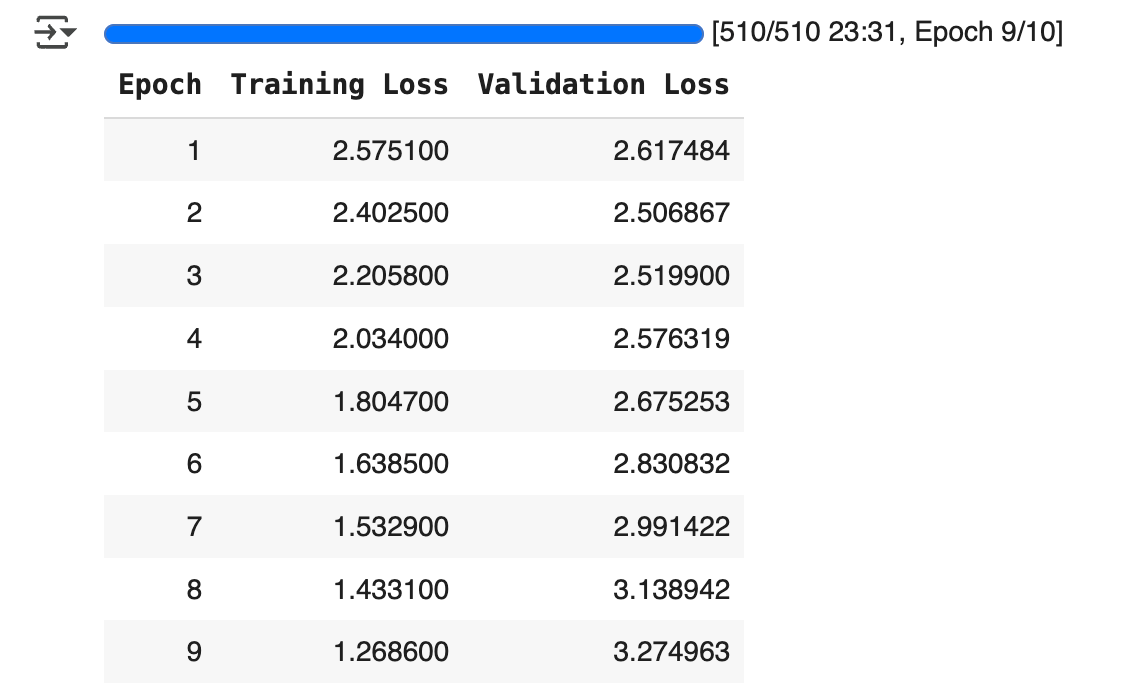
    Here, you should see something that looks like this:

    This shows the training and validation loss for each epoch.

    If training loss decreases and validation loss increases, this indicates overfitting (which we can see here around epoch 3).

    Some strategies to adress overfitting include:

    • reducing learning_rate
    • increasing lora_dropout
    • reducing num_train_epochs

    Once you’re satisfied with the training results, you can compare your model’s output with the base model’s:

    base_model = AutoModelForCausalLM.from_pretrained(model_name).to(torch.bfloat16)
    base_tokenizer = AutoTokenizer.from_pretrained(model_name)

    fine_tuned_model = model
    fine_tuned_tokenizer = tokenizer

    # Example input prompt
    prompt = "<start_of_turn>user\Write an essay on the future of AI<end_of_turn><eos>\n<start_of_turn>model\n"

    # Inference helper
    def generate(model, tokenizer, prompt):
    device=model.device
    inputs = tokenizer(prompt, return_tensors="pt").to(device)
    output = model.generate(**inputs)
    return tokenizer.decode(output[0], skip_special_tokens=True)

    print("=== Base Model Output ===")
    print(generate(base_model, base_tokenizer, prompt))

    print("\n=== Fine-Tuned Model Output ===")
    print(generate(fine_tuned_model, fine_tuned_tokenizer, prompt))

    There you go, now you have your own fine-tuned model to replicate Paul Graham’s style!

    If you set push_to_hub=True in SFTConfig , you can call your fine-tuned model anytime, using your own username and output_id :

    model = AutoModelForCausalLM.from_pretrained(
    "arthurmello/gemma-3-1b-it-paul-graham")

    And, of course, you can adapt this approach to fine-tune LLMs for other use cases!

    A video version of this tutorial is available here:


    Feel free to reach out to me if you would like to discuss further, it would be a pleasure (honestly):
  • LLMs Predict Words. LCMs Predict Ideas.

    LLMs Predict Words. LCMs Predict Ideas.

    How Meta made AI even closer to how humans think

    Traditional language models (LLMs) process text one word at a time.

    They predict the next token based on the ones before it.

    That works well, but it’s not how humans think.

    When we write or speak, we don’t just string words together.

    We organize our thoughts into sentences, ideas, and concepts.

    That’s where Large Concept Models (LCMs) come in.

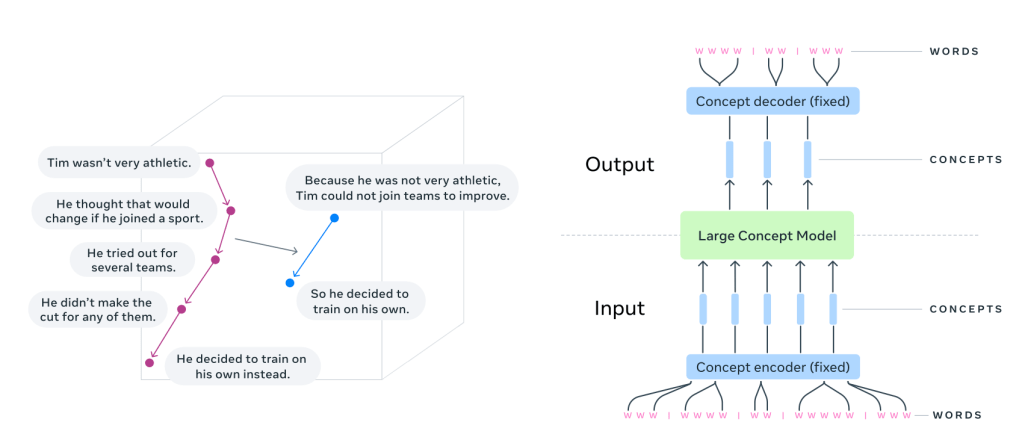
    Instead of predicting the next word, LCMs predict the next sentence.

    Each sentence is treated as a concept — a standalone unit of meaning.

    That’s a big shift.

    Why does this matter?

    LLMs operate at the token level, making them great at text generation but limited in their ability to reason hierarchically. They tend to get lost in long-form content, struggle with consistency, and often fail to keep track of structured ideas.

    LCMs take a different approach. They generate text in sentence embeddings, operating in a high-dimensional space (like SONAR) instead of token sequences. Instead of focusing on words, they predict thoughts in a way that’s language- and modality-agnostic.

    This has big implications:

    • Better context understanding — By modeling entire sentences as units, LCMs improve coherence and logical flow.
    • Multilingual and multimodal — Trained on 200+ languages, LCMs can generalize across text and speech without additional fine-tuning.
    • More efficient generation — Since they work at a higher level, they process fewer steps, making them faster and more scalable than token-based models.
    • Stronger zero-shot performance — LCMs outperform LLMs of the same size in summarization and text expansion tasks, even in languages they weren’t explicitly trained on.

    The technical shift

    LLMs generate text autoregressively, predicting one token at a time. This requires them to process long token sequences and maintain coherence through implicit context modeling.

    LCMs, on the other hand, predict the next sentence embedding in a latent space.

    Instead of raw tokens, they work with sentence representations from SONAR, a multilingual embedding model.

    SONAR is trained to encode and decode sentences across 200+ languages into and out of a single shared representation space. When an LCM needs to handle a new language or modality, only the SONAR encoder/decoder must be updated — leaving the central model untouched.

    The embeddings are processed autoregressively using diffusion models, MSE regression, or quantized representations — allowing LCMs to generalize across languages and modalities without needing explicit tokenization.

    This shift reduces computational complexity, makes it easier to edit long-form text, and allows AI to reason at a higher level of abstraction.

    The results

    When tested on summarization and summary expansion, LCMs outperformed traditional LLMs of the same size.

    They showed strong generalization across multiple languages — without additional fine-tuning.

    They handled long-form text more coherently than token-based models.

    And because they work in a modular embedding space, they can be extended to new languages, speech, or even sign language, without retraining the entire model.

    Challenges

    Sentence splitting

    LCMs rely on robust sentence segmentation. Very long or tricky “sentences” can hurt performance.

    Out-of-distribution embeddings

    With MSE or diffusion, the model could predict vectors that don’t perfectly map back to valid text. Diffusion or well-tuned quantization helps mitigate this.

    Averaging vs. sampling

    A purely MSE-based approach might average all potential continuations into a single “blurry” embedding. Diffusion or discrete codebooks allow multiple plausible completions.

    The Future of Language Modeling?

    LLMs work. But they are word-by-word prediction machines.

    LCMs take a different path — one that focuses on thoughts, not just tokens.

    By modeling language at the concept level, they bring AI closer to how humans structure ideas.

    This isn’t just an optimization. It’s a fundamental shift in how AI understands and generates language.

    And it might just change how we build the next generation of intelligent systems.

    Link to the original paper: https://arxiv.org/abs/2412.08821


    Feel free to reach out to me if you would like to discuss further, it would be a pleasure (honestly):
  • How to Build a Chatbot with Python

    How to Build a Chatbot with Python


    A no-BS guide for complete beginners

    Chatbots are becoming more powerful and accessible than ever. In this tutorial, you’ll learn how to build a simple chatbot using Streamlit and OpenAI’s API in just a few minutes.

    Prerequisites

    Before we start coding, make sure you have the following:

    • Python installed on your computer
    • A code editor (I recommend Cursor, but you can use VS Code, PyCharm, etc.)
    • An OpenAI API key (we’ll generate one shortly)
    • A GitHub account (for deployment)

    Step 1: Setting Up the Project

    We’ll use Poetry for dependency management. It simplifies package installation and versioning.

    Initialize the Project

    Open your terminal and run:

    # Initialize a new Poetry project
    poetry init
    
    # Create a virtual environment and activate it
    poetry shell

    Install Dependencies

    Next, install the required packages:

    poetry add streamlit openai

    Set Up OpenAI API Key

    Go to OpenAI and get your API key. Then, create a .streamlit/secrets.toml file and add:

    OPENAI_API_KEY="your-openai-api-key"
    

    Make sure to never expose this key in public repositories!

    Step 2: Creating the Chat Interface

    Now, let’s build our chatbot’s UI. Create a new folder: streamlit-chatbot, and add a file to it, called app.py with the following code:

    import streamlit as st
    from openai import OpenAI
    
    # Access the API key from Streamlit secrets
    api_key = st.secrets["OPENAI_API_KEY"]
    client = OpenAI(api_key=api_key)
    st.title("Simple Chatbot")
    
    # Initialize chat history
    if "messages" not in st.session_state:
        st.session_state.messages = []
    
    # Display previous chat messages
    for message in st.session_state.messages:
        with st.chat_message(message["role"]):
            st.markdown(message["content"])
    
    # Chat input
    if prompt := st.chat_input("What's on your mind?"):
        st.session_state.messages.append(
           {"role": "user", "content": prompt}
        )
        with st.chat_message("user"):
            st.markdown(prompt)
    

    This creates a simple UI where:

    • The chatbot maintains a conversation history.
    • Users can type their messages into an input field.
    • Messages are displayed dynamically.

    Step 3: Integrating OpenAI API

    Now, let’s add the AI response logic:

    # Get assistant response
        with st.chat_message("assistant"):
            response = client.chat.completions.create(
                model="gpt-3.5-turbo",
                messages=[
                  {"role": m["role"],
                   "content": m["content"]} for m in st.session_state.messages
                ])
            assistant_response = response.choices[0].message.content
            st.markdown(assistant_response)
    
        # Add assistant response to chat history
        st.session_state.messages.append({"role": "assistant", "content": assistant_response})
    

    This code:

    • Sends the conversation history to OpenAI’s GPT-3.5-Turbo model.
    • Retrieves and displays the assistant’s response.
    • Saves the response in the chat history.

    Step 4: Deploying the Chatbot

    Let’s make our chatbot accessible online by deploying it to Streamlit Cloud.

    Initialize Git and Push to GitHub

    Run these commands in your project folder:

    git init
    git add .
    git commit -m "Initial commit"

    Create a new repository on GitHub and do not initialize it with a README. Then, push your code:

    git remote add origin <https://github.com/your-username/your-repo.git>
    
    git push -u origin master

    Deploy on Streamlit Cloud

    1. Go to Streamlit Cloud.
    2. Click New app, connect your GitHub repository, and select app.py.
    3. In Advanced settings, add your OpenAI API key in Secrets.
    4. Click Deploy and your chatbot will be live! 🚀

    Conclusion

    Congratulations, you’ve built and deployed a chatbot using Streamlit and OpenAI. This is just the beginning — here are some ideas to improve it:

    • Add error handling for API failures.
    • Use different GPT models for varied responses.
    • Allow users to clear chat history.
    • Integrate RAG into it

    I hope you enjoyed this tutorial! If you found it helpful, feel free to share it.

    The full code is available here.


    Feel free to reach out to me if you would like to discuss further, it would be a pleasure (honestly):

    LinkedIn